


Penguin Random House Self-Service is our business-to-business portal that offers librarians a fast and easy way to order books, track shipments, review orders, manage invoices, and place claims.
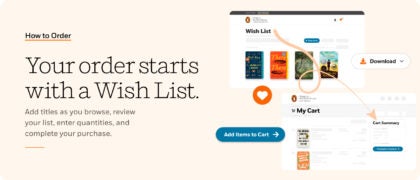
When you register with PRH Self-Service, you also get the ability to sign in on this site, Penguin Random House Library Marketing—using the same email address and password—and can send your Wish List directly to your PRH Self-Service shopping cart. Ordering your favorite titles from PRH Library Marketing becomes even faster and easier.
Registration only takes a few minutes. Start today!
Step 1: Have Your PRH Account Number and SAN Ready
To register, you will need your PRH account number and a Standard Address Number (SAN).
If you recently opened a Penguin Random House business account, you will find your account number in the welcome email from the New Accounts team. Otherwise, you can find your PRH account number at the top of any Penguin Random House invoice.

Sample Invoice illustrating location of Account Number
You may already have a SAN from the SAN agency (Bowker) or may have received one from the New Accounts team when you set up your business account with us (it’s also called RHID). If you don’t, contact the New Accounts team: they will be happy to provide one to you at no charge.
Step 2: Sign up
-
- Go to PRH Self-Service at selfservice.penguinrandomhouse.biz and click on “Register Now” in the upper right-hand corner.

“Register Now” for online ordering on Penguin Random House Self-Service
- You will be prompted to enter the email address you intend to use for ordering purposes.
- You will reach a screen in which to enter your first & last name, your PRH Account Number & SAN (RHID), and your password. Then click “Continue”.
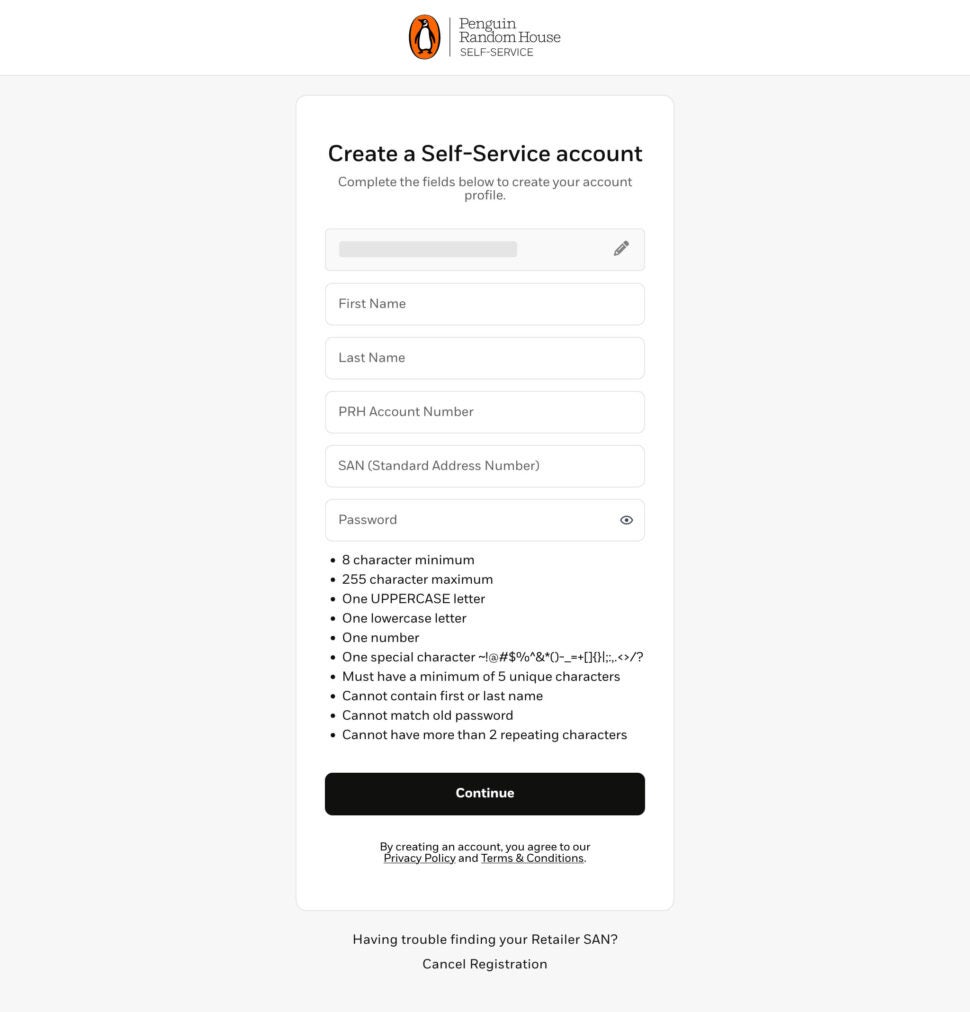
Register with your details.
- Next, you will be prompted to verify your account via an auto-generated code sent to your email.
- Finally, you will be provided an option to set up Multi-Factor Authentication (MFA). While not required, it will be soon, so we recommend adding this to your profile now.
- When this is all complete, you will now be logged into PRH Self-Service.
- Go to PRH Self-Service at selfservice.penguinrandomhouse.biz and click on “Register Now” in the upper right-hand corner.
If you would like to add additional users to your account, click on “Account” in the PRH Self-Service header, select “Manager Users” and add them on the subsequent page.
Once completed, you’re all set to browse and order at any time!

For more information, please visit Penguin Random House Self-Service at selfservice.penguinrandomhouse.biz or contact the PRH Self-Service Support Team at bizcs@prh.com with any questions.
Still have questions?