


The first step in the ordering process is to create a Wish List of titles you’re interested in purchasing on the Penguin Random House Library Marketing website. After your list is created, you can either add the titles directly to your Penguin Random House Self-Service shopping cart.
If you’re a library and have never ordered from Penguin Random House before, learn more about creating an account with us. If you already have an account but have not yet registered for online ordering, how to register with Penguin Random House Self-Service.
Step 1: Sign In
First, sign in on this site with the email address and password you use on the PRH Self-Service site.

Librarian sign in on Library Marketing
If you are interested in ordering online through our website but do not yet have a PRH Self-Service account, read more about creating one in a few minutes here. If you do have a PRH Self-Service account but have not yet registered for online ordering via PRH Self-Service, read more about doing so here.
If you urgently need to place an order or if you need to place an order for an Author Event, proceed to Step 2 and order through Customer Service.
Step 2: Create a Wish List
The Wish List is a tool to save all the titles you want to purchase. To add an item to your Wish List, click the 🖤 icon next to any title.

“Heart” buttons add or remove items from your Wish List
All your saved items can then be found by clicking the Wish List icon on the top right corner of the page.
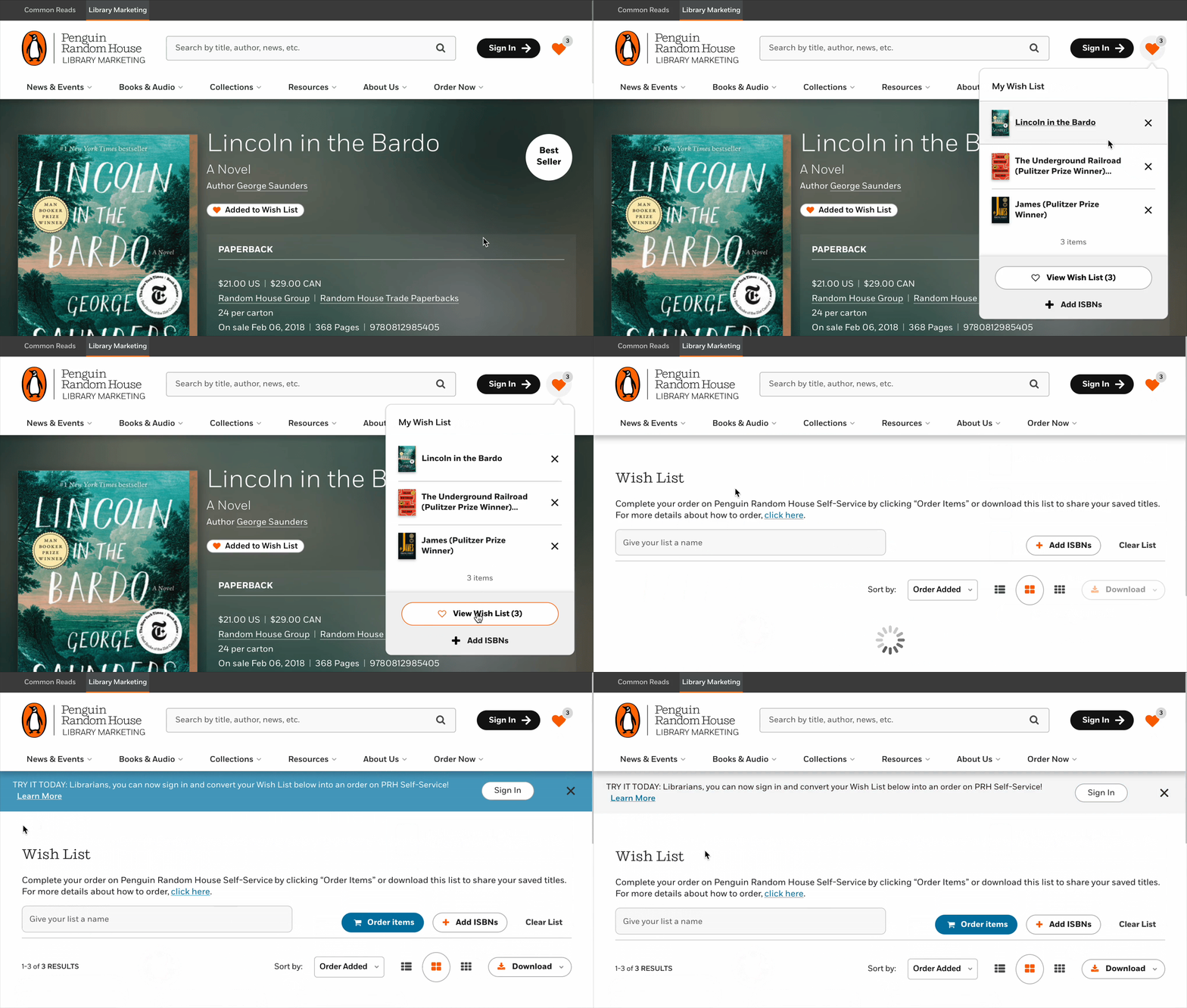
Click on the “Wish List” icon in header to access page
Step 3: Finalize Your Order
I’m a Librarian with a PRH Self-Service Account
Once you’ve signed in and selected all your favorite titles, click the “Order Items” button on the Wish List page to view the Wish List Order Form.
Note: Ordering is currently only available on desktop and tablet devices.
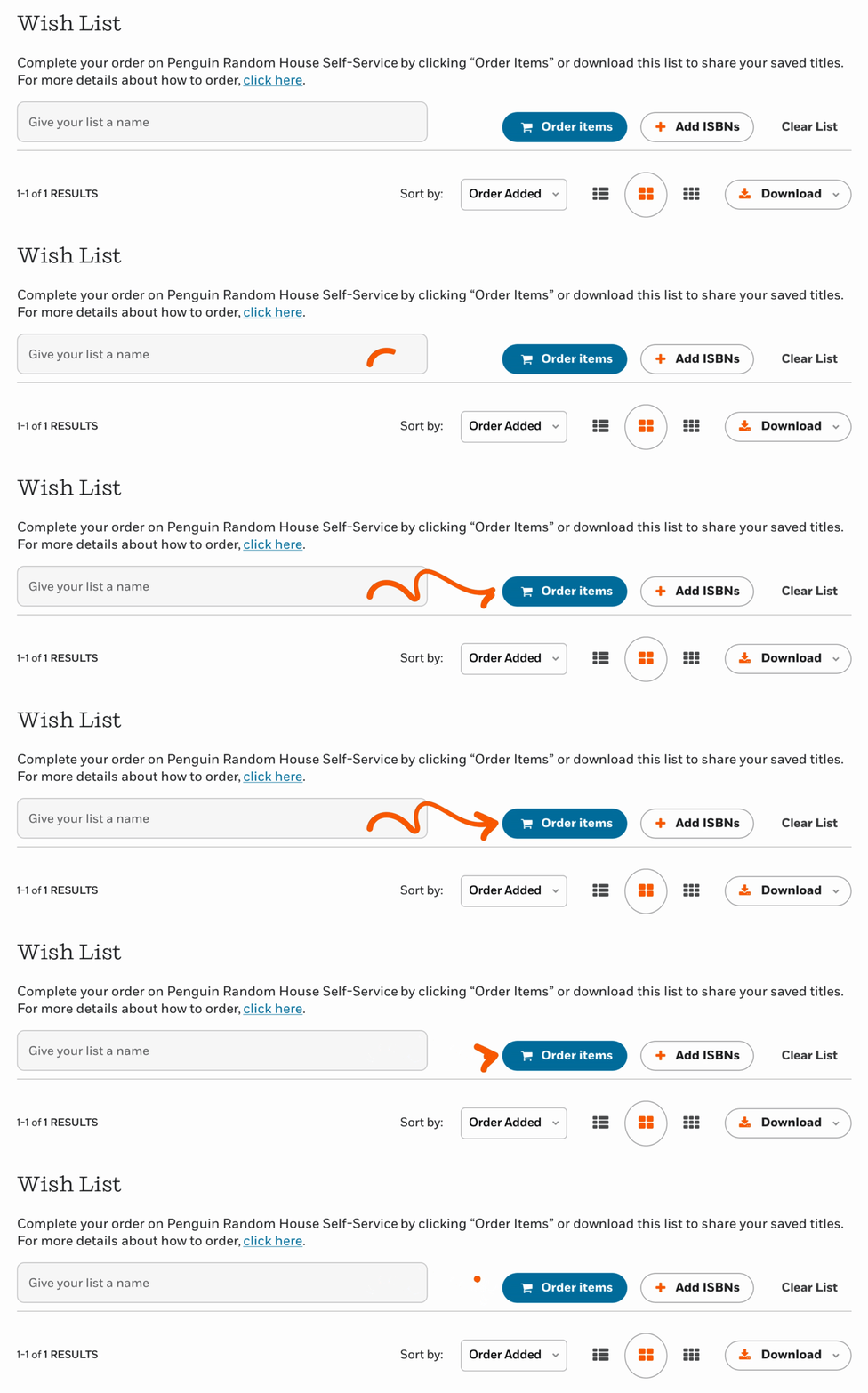
Send Wish List to Order Form by clicking on “Order items” button
Select the titles and enter quantities for the items you’d like to purchase, then click “Add items to Cart.” This will open the PRH Self-Service site in a new browser tab where you’ll be asked to confirm the titles you’re adding to your PRH Self-Service cart.
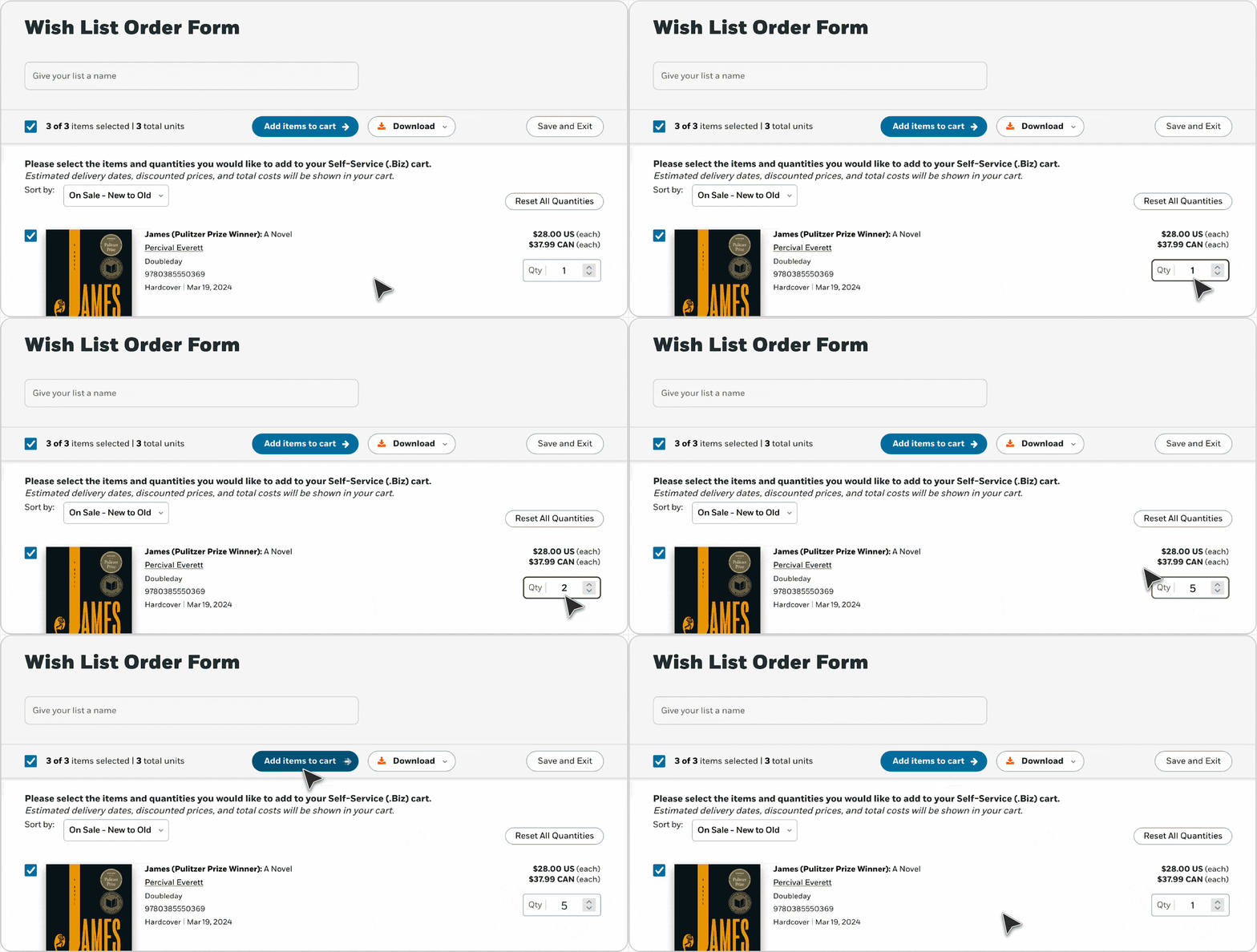
After adjusting quantities on Order Form and you are ready, click “Add Items to Cart”
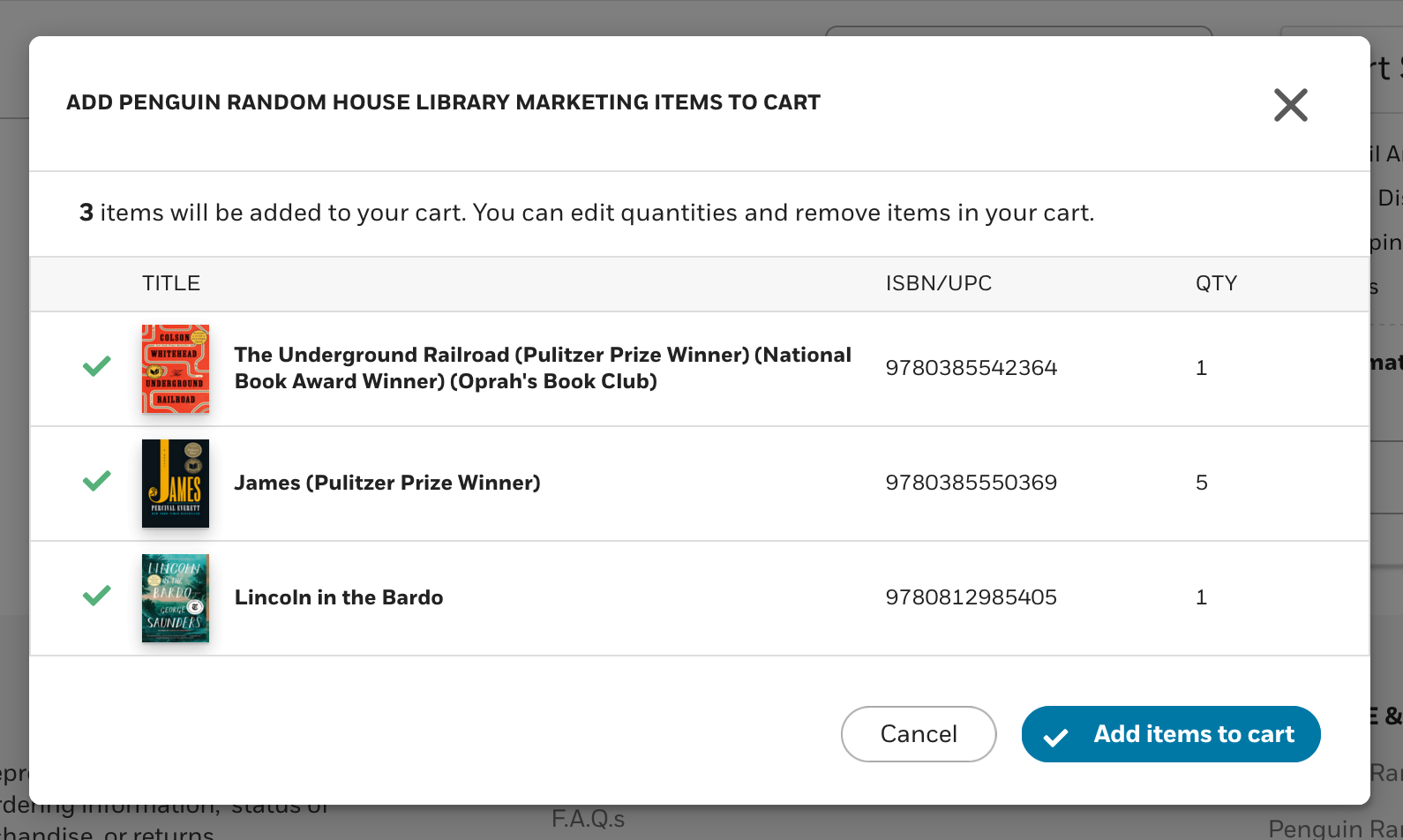
Self-Service will open in a new tab and you will get a confirmation modal
Once the titles have been added to your cart you can complete the purchase on PRH Self-Service by clicking the “Proceed to Checkout” button.
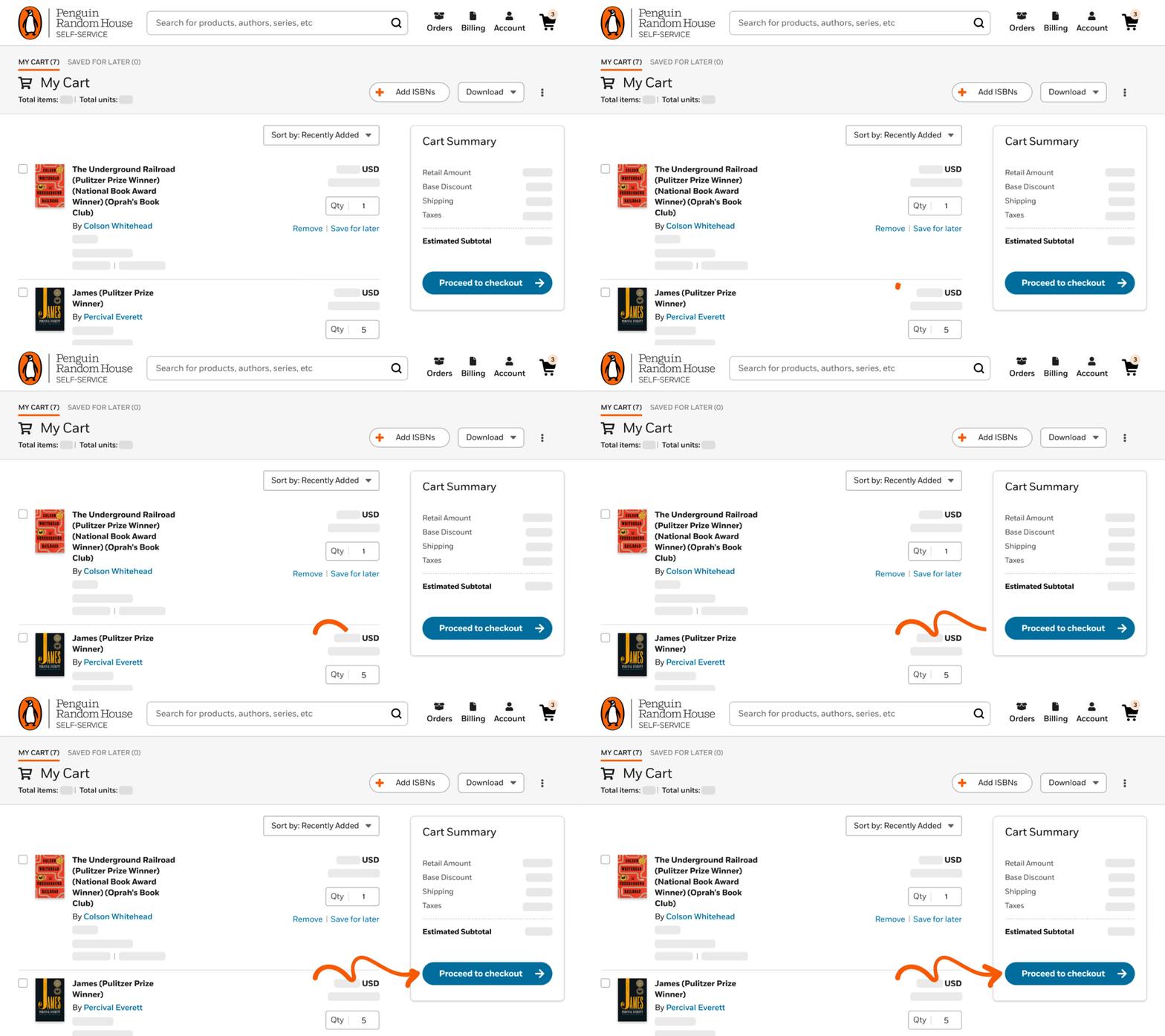
Additional adjustments can be made in Self-Service – click “Proceed to Checkout” when complete
I’m a Librarian and DO NOT HAVE a PRH Self-Service Account Already, How Can I Order?
Once you’ve selected all your favorite titles, click the download button from the Wish List page and select the option, Download Order Form (.xls).
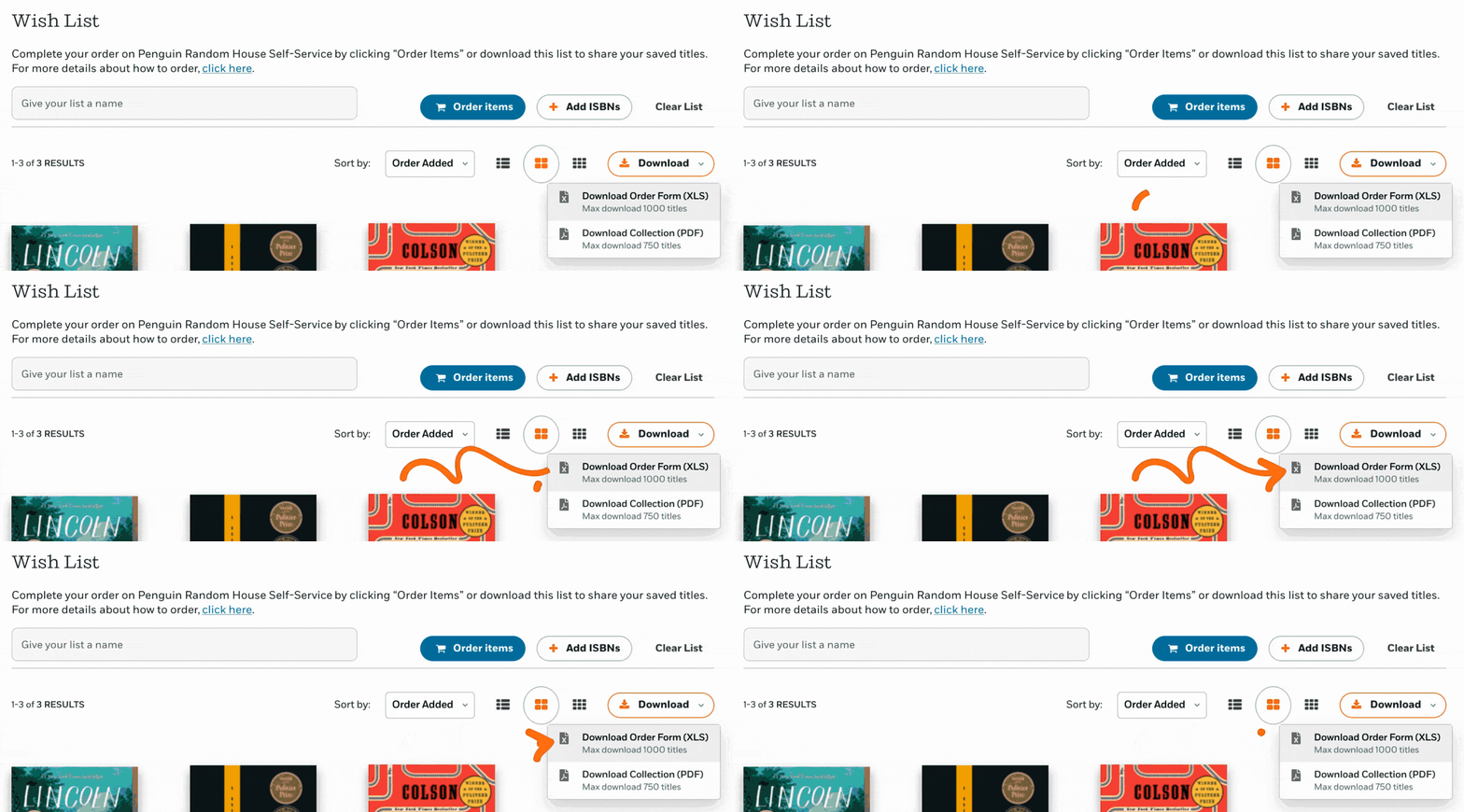
Select “Download Order Form” from the “Download” button on the Wish List page
After opening the Excel document, you can enter the number of units you want to order in the quantity column. Then, email or fax your downloaded order form to CS Orders (csorders@penguinrandomhouse.com ) to place your order.
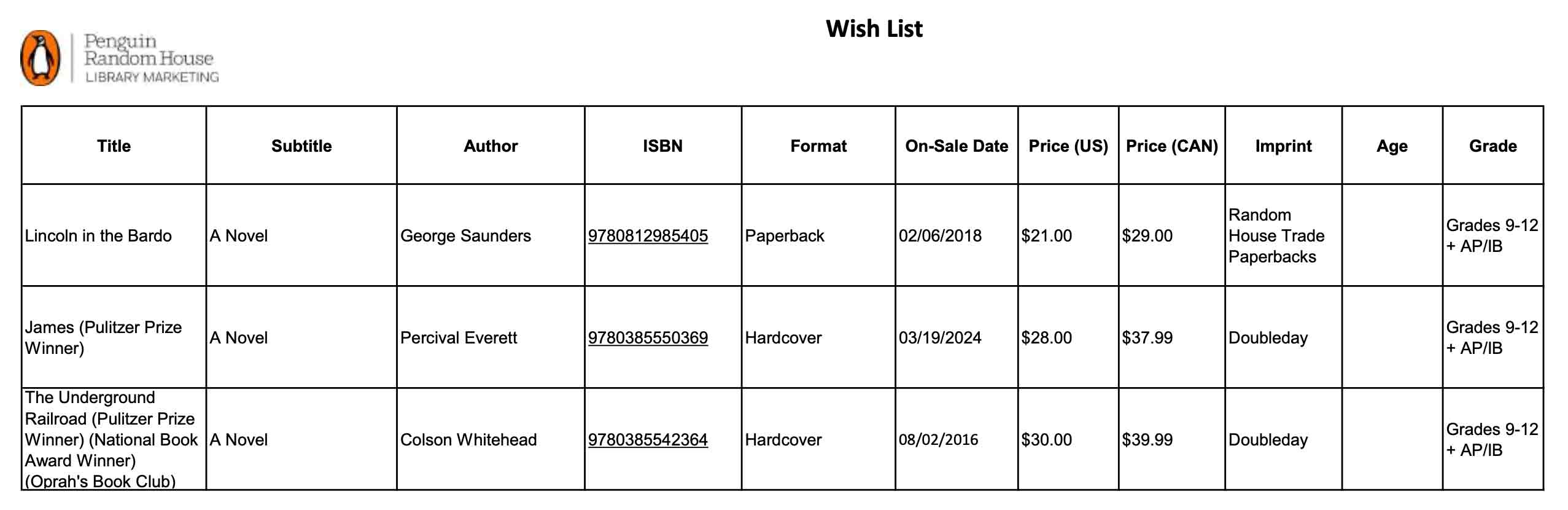
Wish List downloadable Excel form
Still have questions?